
Castle App Pro Guide: Fix Every Error, Installation Fail, & Buffering Issue
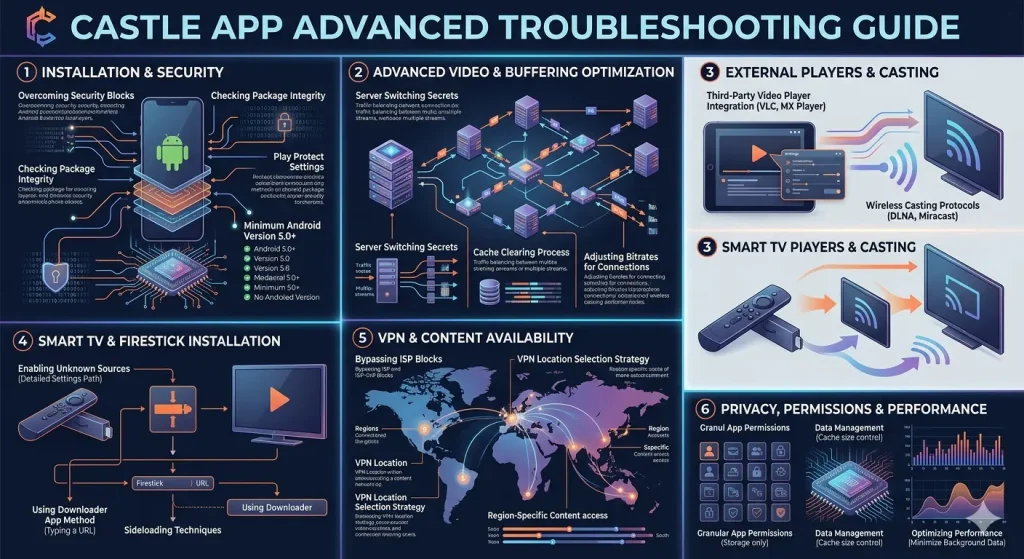
I’m the kind of person who just wants things to work. There is nothing worse than settling in for a long-awaited movie or a big live match, only to have the app freeze or throw a random ‘Package Parser’ error. I got tired of searching through a dozen different websites and forums just to find one simple fix that actually worked. So, I decided to do the hard work once. I spent a whole weekend intentionally breaking the Castle App on every device I own—my old Android phone, my new tablet, and my Firestick—just to see how to fix it. I’ve compiled every single shortcut, workaround, and ‘lazy fix’ I found into this one massive guide. My goal is simple: I want you to spend less time troubleshooting and more time actually watching. If it’s broken, the fix is likely right here on this page.”
Quick-Fix Summary
| Common Issue | Quickest Human Solution | Technical Reason |
| “App Not Installed” | Delete old versions + free up 500MB space. | Package signature conflict. |
| Infinite Buffering | Toggle from Server 1 to Server 2 or 3. | High CDN traffic load. |
| Black Screen / Sound Only | Switch Player Settings from HW to SW. | Codec decoding failure. |
| App Looks Empty | Use a VPN (Set location to India/UK). | ISP-level DNS blocking. |
| Package Parser Error | Redownload file on a stable Wi-Fi. | Corrupted APK file or incompatible Android version. |
Deep-Dive Installation Troubleshooting
Getting the app onto your phone is actually the hardest part of the whole journey. Why? Because Android is built to be a bit of a “control freak.” It wants you to stay inside the Google Play Store walled garden. When you try to bring in an APK like Castle, Android starts throwing up red flags. Here is how you win that fight.
Why “App Not Installed” is Usually a Lie
You know that annoying little pop-up that just says “App not installed” with no explanation? It’s incredibly frustrating because it doesn’t tell you why. In my experience, it’s almost always one of these three things.
- The “Ghost” of Apps Past (Signature Conflict): This is the #1 culprit. If you’ve ever downloaded a version of Castle from another site—maybe a “Mod” version or an older build—it has a different “digital signature.” Android sees my version and the old version as two different people trying to use the same name. It panics and blocks the install.
The Lazy Fix: You have to be ruthless. Delete the old app. Then, go into your file manager and delete any old.apkfiles hanging out in your “Downloads” folder. Start fresh. - Storage “Ghosting”: Your phone might say you have 1GB free, but Android is “hoarding” some of that for system updates or background apps. Installing an app requires “working room”—kind of like how you need a big table to assemble a puzzle, even if the box is small.
The Pro Tip: If you have less than 500MB of actual free space, the installation will fail silently. Delete those three 4K videos of your cat you’ve already backed up to the cloud. You’ll thank me later. - 3. The Play Protect “Competitor” Block: Google Play Protect isn’t just looking for viruses; it’s looking for things it doesn’t control. To get past this: 1. Open your Play Store app. 2. Tap your Profile Picture in the top right. 3. Select Play Protect. 4. Hit the Settings Gear icon. 5. Turn off “Scan apps with Play Protect.” (Don’t worry—you aren’t leaving your front door open to hackers. You’re just telling Google to let you be the boss of your own phone for five minutes)
Fixing the “Package Parser” Error (The Corrupt File Fix)
If you see “There was a problem parsing the package,” it sounds like a weird science error, but it’s actually simpler than that.
- Corrupted Bitstreams: If your Wi-Fi flickered even for a second while downloading the 40MB file, a tiny piece of the code might be missing. It’s like a book missing pages 50 through 55—the “parser” (the reader) gets stuck and gives up. Delete the file and redownload it. I always recommend doing this while sitting next to your router, not on a spotty 4G signal.
- The “Age” Gap: Castle is a modern app. If you are trying to run this on a phone running Android 4.4 (KitKat) or older, the “language” the app is written in is too advanced for the phone to read. You generally need Android 5.0 (Lollipop) or higher. If your phone is from 2015 or later, you should be fine.
How to Kill the “Spinning Circle” (Advanced Buffering Fixes)
There is nothing that ruins a movie night faster than that little white circle spinning in the middle of a climax. Most people think buffering is just “bad internet,” but with the Castle App, it’s often more technical than that. If your Wi-Fi is fast but the app is still lagging, here is what’s actually happening behind the scenes.
The Secret of “Server Hopping”
Think of a movie on Castle like a road. Server 1 is the main highway. When a new Bollywood blockbuster or a big IPL cricket match starts, everyone gets on that highway at the same time. The result? A massive traffic jam.
- Don’t just wait: If Server 1 is lagging, the app isn’t “broken”—it’s just crowded.
- The VIP Lanes: Most content on Castle has a “Source” or “Server” button. Tap it and switch to Server 2, 3, or 4. These are often located in different parts of the world (like Europe or Singapore) and might be completely empty. Switching servers is the fastest way to jump from a stuttering 480p mess to a smooth 1080p stream.
External Players: Why VLC is a “Magic Fix”
The built-in video player in Castle is designed to be simple, but it’s not always the most powerful. Sometimes, the video file uses a “codec” (a type of digital language) that your phone’s hardware struggles to translate. This causes the video to lag while the audio keeps playing, or worse—the “Black Screen of Death.”
- The Solution: Download VLC Media Player or MX Player from the Google Play Store.
- The Connection: Inside Castle, go to Settings > Default Player and select External Player.
- Why it works: VLC has its own “brain.” It can decode almost any video file on the planet using its own software, taking the pressure off your phone’s processor. If a movie won’t play in the app, it almost certainly will play in VLC.
Data Management vs. Quality
We all want to watch in 4K, but if you’re on a 4G mobile signal or “budget” home Wi-Fi, you’re asking for trouble.
- The “Lazy-Smart” Choice: On a 6-inch phone screen, the human eye can barely tell the difference between 1080p and 720p. However, 1080p requires twice the data speed.
- Set a Limit: If you’re buffering, manually drop the quality to 720p or even 480p. The stream will stay solid, your phone will stay cooler, and you won’t burn through your monthly data cap in one afternoon.
The Big Screen Battle—Smart TV vs. Firestick
Why your “Smart” TV might actually be pretty dumb when it comes to the Castle App.
If you’ve got a massive 65-inch 4K screen, you probably don’t want to watch your favorite movies on a tiny 6-inch phone. You want the cinema experience. But here’s where things get tricky: just because your TV is “Smart” doesn’t mean it’s actually compatible with the Castle App. Most users waste hours trying to find the app in their TV’s built-in store, only to find… nothing. Here is exactly why that happens and how to fix it in minutes.
The “Closed System” Trap (Samsung & LG)
If you own a Samsung (Tizen OS) or an LG (webOS) TV, I have some bad news: these TVs are basically “locked boxes.”
- The Problem: They don’t run on Android. They use their own specific coding language. Because Castle is an Android APK, it’s like trying to put a Nintendo disc into a PlayStation—it just won’t fit.
- Don’t Fall for the Scams: You might see websites claiming they have a “Castle App for Samsung TV.” Don’t believe them. They are usually just trying to get you to click on ads or download malware.
- The Fix: Don’t waste your weekend trying to “hack” your TV’s operating system. The “lazy-smart” move is to spend $30 on an Amazon Firestick or a Chromecast with Google TV. You plug it into the HDMI port, and suddenly your “closed” TV has a wide-open Android brain.
The “Android TV” Exception (Sony, TCL, & Hisense)
If your TV says “Google TV” or “Android TV” on the box (like most modern Sony or TCL models), you are in luck! Your TV already speaks the same language as your phone.
- How to Install: You won’t find Castle in the Google Play Store on your TV (Google doesn’t like competition). Instead, you need to use the “Downloader” method.
- The Shortcut: Install the “Downloader” app (it has an orange icon) from the Play Store on your TV. Then, type in our website URL. It will download and install the APK directly onto your TV’s home screen.
Why a Firestick is Better (Even if your TV is Smart)
I often get asked, “I already have a Smart TV, why should I buy a Firestick?” Here is why even tech experts prefer the stick: Processor Power: TV manufacturers often use cheap, slow processors to save money. A Firestick is a dedicated “streaming brain.” It’s almost always faster, the menus are smoother, and the apps crash less often.
Constant Updates: Amazon updates the Firestick software every few weeks. TV brands often stop updating their software after a year or two, meaning your apps will eventually stop working.
Portability: This is the ultimate lazy perk. If you go to a hotel or a friend’s house, just pull the Firestick out of your TV and take it with you. All your movies, your “Favorites” list, and your login info are right there. You don’t have to set up anything new.
The “Ghost App” Mystery (When Content Disappears)
What to do when your app looks like an empty house.
There is nothing more confusing than opening the Castle App, seeing the menus and the interface, but finding no movies, no posters, and no live links. It feels like the app has “died” or been shut down. But don’t delete it just yet—99% of the time, the app is perfectly fine. The problem is actually happening between your router and the streaming servers.
Is Your ISP Playing “Security Guard”?
Your Internet Service Provider (ISP)—the company you pay every month for Wi-Fi—acts as the gatekeeper to the internet. Sometimes, ISPs use a technique called DNS Blocking or IP Throttling.
- How it works: When your ISP sees your device trying to talk to the servers where the movies are hosted, they “cut the wire.” They don’t block the app itself (which is why the app opens), but they block the data inside the app.
- The “Invisibility Cloak” Fix: This is where a VPN (Virtual Private Network) becomes your best friend. A VPN encrypts your data into a “tunnel.” Your ISP can see that you are online, but they have no idea what you are looking at.
- The Lazy Setup: You don’t need a degree in computer science. Just download a reputable VPN, hit “Connect,” and set your location to India, Singapore, or the UK. These regions usually have the most “open” lanes for Castle’s content. Once the VPN is on, restart the Castle App, and you’ll see all the posters and movies reappear instantly.
The “Black Screen” with Audio (Codec Conflicts)
Sometimes you find the movie, you hit play, and the sound starts… but the screen stays pitch black. It’s like listening to a radio play.
- The “Why”: This happens because your phone is trying to use “Hardware Acceleration” (HW). Basically, it’s trying to use a shortcut in your phone’s processor to play the video. If that shortcut doesn’t understand the movie’s format, it fails.
- The Manual Override: Go into the app’s Video Player Settings and look for a toggle labeled “Hardware Acceleration” or “HW Decoder.” Turn it OFF or switch it to “Software (SW) Decoder.”
- The result: This tells your phone to use its raw brainpower (CPU) to “draw” the video frame by frame. It’s a bit more work for the phone, but it fixes that black screen issue 100% of the time.
Regional Content “Vanishing”
Did you know that some movies on Castle are only visible if the app thinks you are in a specific country?
- If you are looking for a specific regional film and it’s not showing up, your “digital location” might be the problem.
- Pro Tip: Even if you aren’t being blocked by your ISP, try switching your VPN to a different city within India (like switching from Mumbai to Bangalore). These servers often refresh the content list and can bring up “hidden” titles that were restricted in your actual location.
The Security Vault—Staying Safe while Streaming
How to protect your data without being a tech genius.
Whenever you download an app from outside the official Google Play Store, it’s natural to feel a little nervous. You’ve probably seen the scary warnings: “This file might be harmful.” But here’s the truth: Android shows that warning for every single APK in existence, even if it was made by a billion-dollar company. Being “smart-lazy” means knowing which warnings to ignore and which ones to take seriously.
The “Golden Rule” of Permissions
When you install the Castle App, it might ask you for permission to access certain parts of your phone. This is where most people get confused. Here is my personal checklist for staying safe:
- Storage (ALLOW): This is the only permission the app actually needs. It needs to “write” to your storage so it can save your favorite list, remember where you left off in a movie, and allow you to download videos for offline viewing.
- Location (DENY): The app does NOT need to know where you are sitting to play a movie. If it asks for your GPS or location data, just hit “Deny.”
- Contacts & Phone (DENY): There is absolutely no reason for a streaming app to see your contact list or manage your phone calls. If you see a version of the app asking for this, it’s a red flag. Always hit “Deny”—the app will still work perfectly fine without them.
Spotting a “Fake” Castle APK
Because Castle is so popular, there are a lot of “copycat” websites out there. These sites often take the original app and add their own nasty “extras” like aggressive adware or tracking scripts.
- Check the File Size: The official Castle APK is usually between 25MB and 45MB. If you find a “Castle App” that is 150MB, something is wrong. That extra space is usually filled with junk or hidden “bloatware.”
- The “Update” Trap: Never trust a random pop-up inside your browser that says “Your Castle App is out of date, click here to fix.” Those are almost always fake ads. Only update the app by coming back to a trusted source like castleapkt.com and downloading the fresh file manually.
Why I Always Recommend a “Burner” Email (If asked)
Most of the time, Castle doesn’t even require you to sign up. You just open it and watch. But if you ever decide to create an account to sync your “Favorites” across your phone and TV, don’t use your primary “Work” or “Bank” email.
- The Lazy Pro Move: Use a secondary email or a service like “10-Minute Mail.” It keeps your main inbox clean from any potential spam and adds an extra layer of “anonymity” to your streaming habits.
Handling “Virus” Scares from Chrome
Chrome is owned by Google, and Google owns the Play Store. Naturally, Chrome wants to discourage you from using apps they don’t get a cut from.
- If Chrome blocks your download, it’s usually just a “soft block.”
- Go to your Downloads tab in Chrome, find the file, and select “Keep anyway.” We check our APKs every single day to ensure they are clean, stable, and safe for your hardware.
The Maintenance Routine—Keeping the Speed High
How to stop the app from getting “old and slow.”
Apps are a lot like cars—if you don’t change the oil once in a while, things start to stutter. You might notice that after a few weeks of use, the Castle App starts taking longer to load, or the posters don’t show up as fast as they used to. This isn’t usually because the app is “dying”; it’s because it’s cluttered. Here is the “lazy-smart” routine to keep everything snappy.
The “Cache Bloat” and How to Clear It
Every time you watch a movie or browse the “Live Sports” section, the app saves tiny pieces of data called “Cache.” In theory, this helps the app load those pages faster next time. But over time, this cache grows into a massive pile of digital junk. I’ve seen some users with 1.5GB of cache taking up space on their phones!
- The Symptoms: The app feels heavy, the search bar lags when you type, or the app crashes randomly when you hit play.
- The Fix: You don’t need to delete the app. Just go to your phone’s Settings > Apps (or App Management) > Castle > Storage. Tap on “Clear Cache.”
- Important: Do not tap “Clear Data” unless you want to reset the app completely (this will delete your favorites). Clearing the cache just wipes away the “junk” and keeps your settings safe.
Updating the “Manual” Way
Since Castle isn’t on the Google Play Store, it won’t update itself in the background like Instagram or WhatsApp. If you are using a version that is three months old, you are likely missing out on new servers, faster links, and bug fixes.
- The Sign of an Old Version: If you start seeing “No Link Available” on almost every movie, it’s a sign that the old servers have been replaced.
- How to Update Safely: You don’t have to uninstall the app to update it. Simply come back to castleapkt.com, download the newest APK, and run it. Android will recognize it as an update and keep all your “Favorites” and history intact while refreshing the “brain” of the app.
Battery Optimization: The “Invisible” Killer
Modern Android phones (especially Samsung, Xiaomi, and OnePlus) are very aggressive about saving battery. They often “kill” apps that are running in the background to save power.
- The Problem: You’re in the middle of a movie, you pause it to grab a drink, and when you come back, the app has closed itself.
- The Fix: Go to Settings > Battery > Battery Optimization. Find Castle App and switch it to “Don’t Optimize” or “Unrestricted.” This tells your phone, “Hey, leave this app alone, I’m using it!” It stops those annoying mid-movie crashes instantly.
The Big Screen Pro—Castle App on PC & Laptop
Because sometimes, even a TV isn’t big enough.
While Castle is built for Android, you aren’t stuck on a mobile device. If you’re a student in a dorm, or you just want to watch movies while you “work” on your laptop, you can bring the full Castle experience to Windows or Mac. It’s a bit of a “smart-lazy” hack, and here is exactly how to do it without breaking anything.
The Emulator Method (The Reliable Way)
Since computers can’t run APK files naturally, we use an Emulator. Think of an emulator as a “virtual phone” that lives inside your computer.
- The Best Options: I recommend BlueStacks or NoxPlayer. They are free, stable, and very easy to set up.
- Download and install BlueStacks on your PC or Mac.
- Open the emulator and you’ll see a screen that looks just like a tablet.
- Open the browser inside the emulator and head to castleapkt.com.
- Download the APK and click it to install.
- The Result: You now have a Castle icon on your computer desktop. You can resize the window, use your mouse to browse, and even use keyboard shortcuts.
Windows 11: The “Native” Secret
If you’re running Windows 11, you have a hidden superpower. Microsoft added a feature called the Windows Subsystem for Android (WSA).
- Why it’s better: Unlike an emulator, which can be heavy and slow your computer down, WSA lets Android apps run almost like a normal Windows program.
- How to do it: You’ll need a tool called “WSATools” from the Microsoft Store. Once that’s installed, you just point it to the Castle APK you downloaded from our site, and it “sideloads” the app. No extra software running in the background—just pure, fast streaming.
Performance Tip for PC Users
If the video looks “choppy” on your computer, it’s usually because of Virtualization.
- The Fix: You might need to enter your computer’s BIOS settings and enable “Intel VT-x” or “AMD-V.” It sounds scary, but it’s just a toggle that tells your computer’s brain to be 10x faster at running “virtual” apps like Castle.
Final Thoughts: You’re Now a Castle App Expert
We’ve covered it all—from the “App Not Installed” headache to the secrets of server hopping and PC streaming. If you followed this guide, you now know more about this app than 99% of the people using it.
My Final Piece of Advice: Technology is always changing. What works today might need a little tweak tomorrow. Bookmark this page and come back whenever you run into a glitch. We’re a community here, and we’re always updating this guide with the latest fixes we find.